
CapCut vs Canva for social media reels and stories
If you post Reels and Stories every week, you’ve probably had this exact argument with yourself: open CapCut, or open Canva? Both are free. Both claim to be “all you need.” But they’re built for different jobs, and picking the wrong one costs you time you don’t have.
We tested both tools against the same task — turning a batch of raw clips and photos into a week’s worth of Reels and Stories — to see where each one actually pulls ahead.
Key Takeaways
- CapCut wins for Reels editing — frame-accurate trimming, auto-captions, speed ramping, and trending audio access make it the stronger choice for video-heavy content.
- Canva wins for Stories and brand consistency — its template library, Brand Kit, and drag-and-drop design tools are faster for graphic-based Stories and multi-platform repurposing.
- Most creators end up using both — CapCut to edit the video, Canva to build the surrounding graphics, covers.
- Reels already generate 67% higher engagement than static feed posts, according to <cite index=”15-1″>data from over Q1 2026 covering Instagram’s format performance</cite>, so the tool you use to produce them matters more than it used to.
- Neither tool is free of limitations — CapCut’s advanced AI features sit behind a paywall, and Canva’s video timeline can feel restrictive once you outgrow templates.
Table of Contents
CapCut vs Canva: Quick Comparison Table
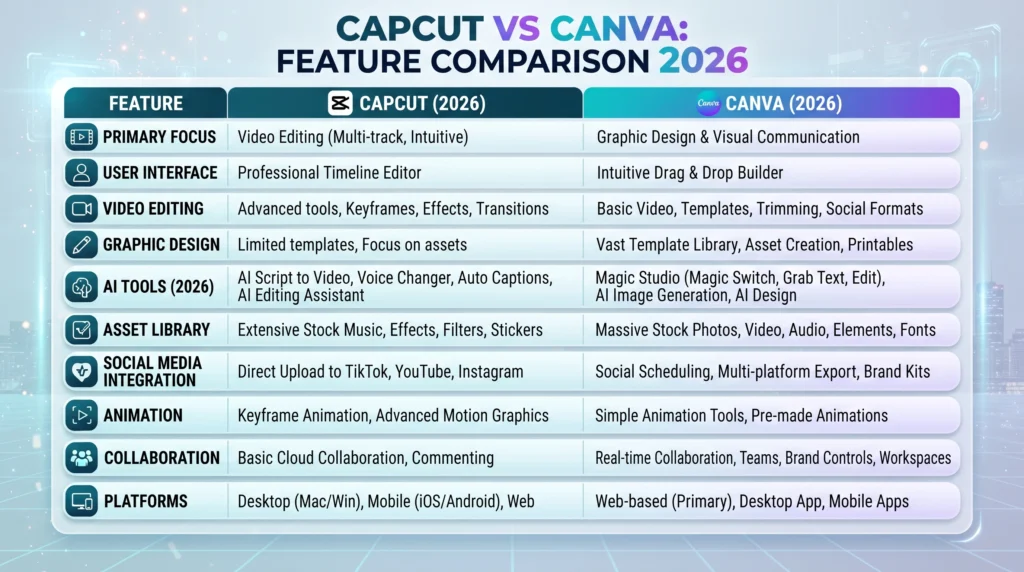
| Feature | CapCut | Canva |
|---|---|---|
| Best for | Video editing, Reels, TikTok-style content | Graphic design, Stories, branded templates |
| Free plan | Yes, generous, no watermark | Yes, generous, no watermark |
| Timeline editing | Frame-level precision, multi-track audio | Scene-based, simpler drag-and-drop |
| Auto-captions | Industry-leading speech detection | Basic, improving |
| Templates | Video-focused, trend-driven | Massive library across formats |
| Brand Kit | Not available on free plan | Strong, even on lower tiers |
| Speed ramping / keyframing | Yes, built-in | Limited |
| Mobile app quality | Excellent, mobile-first | Good, web-first experience |
| Team collaboration | Basic | Strong, built for teams |
| Paid tier starting price | ~$9.99/month (Standard) | ~$12.99/month (Pro) |
Where CapCut Pulls Ahead
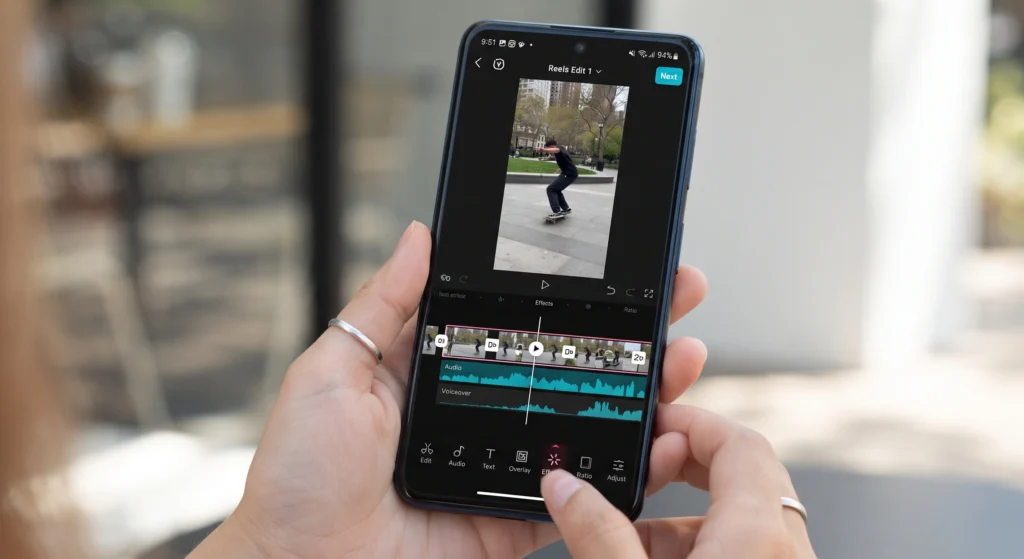
CapCut was built around short-form video from day one, and it shows the moment you start editing. You get frame-level trimming instead of just dragging clips into rough order, plus speed ramping, keyframing for animated movement, and HSL color grading — tools that used to require desktop software. Auto-captions are a standout: they detect speech and generate synced, styled subtitles almost instantly, which matters when captioned Reels hold viewers roughly 15% longer than uncaptioned ones based on recent Reels performance research.
Pros:
- Frame-accurate editing and multi-track audio
- Best-in-class auto-captions and object removal
- Direct access to trending sounds and effects
- Strong offline mobile editing
Cons:
- Steeper learning curve than Canva for total beginners
- Best AI tools (4K export, full AI suite) require the Pro plan
- Weak for static graphic design — not built for that job
Where Canva Pulls Ahead
Canva’s strength is speed and consistency, not editing depth. If you’re producing a Story graphic, a quote card, or a product announcement that needs to match your brand every time, Canva’s Brand Kit and template library get you there in minutes. Its video editor is genuinely useful for scene-based content — swap clips into a pre-built template — but it isn’t built for granular trims or multi-layer audio work the way CapCut is.
Pros:
- Massive, well-organized template library
- Brand Kit keeps fonts, colors, and logos consistent
- Faster for teams producing many graphics at once
- One platform for Stories, feed posts, and presentations
Cons:
- Video timeline lacks frame-level precision
- Manual audio mixing feels clunky next to CapCut
- Some Brand Kit and collaboration features are paywalled

Which Should You Use for Reels?
For Reels specifically, CapCut is the stronger pick. Reels reward pacing, captions, and trend-driven editing, and that’s exactly where CapCut’s toolkit is built to perform. If your Reels are mostly text-over-photo slideshows rather than filmed clips, Canva’s video editor can still get the job done without much of a learning curve.
Which Should You Use for Stories?
Stories lean more graphic than video, so Canva usually wins here — templates, stickers, and brand-consistent layouts come together faster than trying to force CapCut into a design tool it wasn’t built to be.
FAQ CapCut vs Canva
Can I use CapCut and Canva together?
Yes, and many creators do. A common workflow is editing the raw video in CapCut, then exporting a cover image or thumbnail into Canva for branding before posting.
Is CapCut safe to use, given it’s owned by ByteDance?
CapCut’s data practices are similar to other free content apps: it collects usage and device data as outlined in its privacy policy. If data ownership is a dealbreaker for your business, it’s worth reading the current privacy terms directly before adopting it for client work.
Does Canva have a free video editor?
Yes, Canva’s free plan includes basic video editing with templates, transitions, and text overlays, though it’s simpler than CapCut’s toolkit.
Which tool is better for a small business with no design team?
Canva, generally — its templates and Brand Kit reduce the design skill required to produce consistent, professional-looking content across formats.
The Bottom Line
Neither tool “wins” outright — they solve different problems. If Reels are your main format, CapCut’s editing depth will save you real time. If you’re producing a mix of Stories, feed graphics, and brand assets, Canva keeps everything consistent without needing a designer. Most small businesses we’ve seen get the best results running both: CapCut for the video work, Canva for everything around it.
Not sure which one fits your workflow? Try the free plan of whichever matches your primary content format this week — you’ll know within a few posts.
If you’re building out a full content pipeline rather than picking one tool, it’s worth pairing CapCut and Canva with the other apps creators are using for short-form video right now — see our roundup of #1 Best AI Tools for Instagram, TikTok & Facebook Stories for options beyond just these two. And if engagement data is driving your format decisions, the numbers back up prioritizing Reels: they generate 67% higher engagement than static feed posts, and CapCut’s own feature comparison shows why its editing toolkit has become the default for creators chasing that format.