
If your videos are good but the views are flat, the problem usually isn’t the content — it’s the thumbnail. It’s the ad for your video, and viewers decide whether to click in under a second. The fastest way to fix a weak thumbnail habit is to build your workflow around an AI thumbnail generator for YouTube. Done right, it speeds up design, gives you real A/B test variations, and keeps your channel’s branding consistent even if you’ve never opened Photoshop.
This guide covers what actually moves click-through rate, which tools are worth paying for in 2026, and how to turn one thumbnail design into a cover image for Instagram Reel and Facebook Reel without starting over. If your thumbnail budget is tight, pair this with our guide to low-cost AI video editors for YouTubers to cover both the edit and the cover image without overspending.
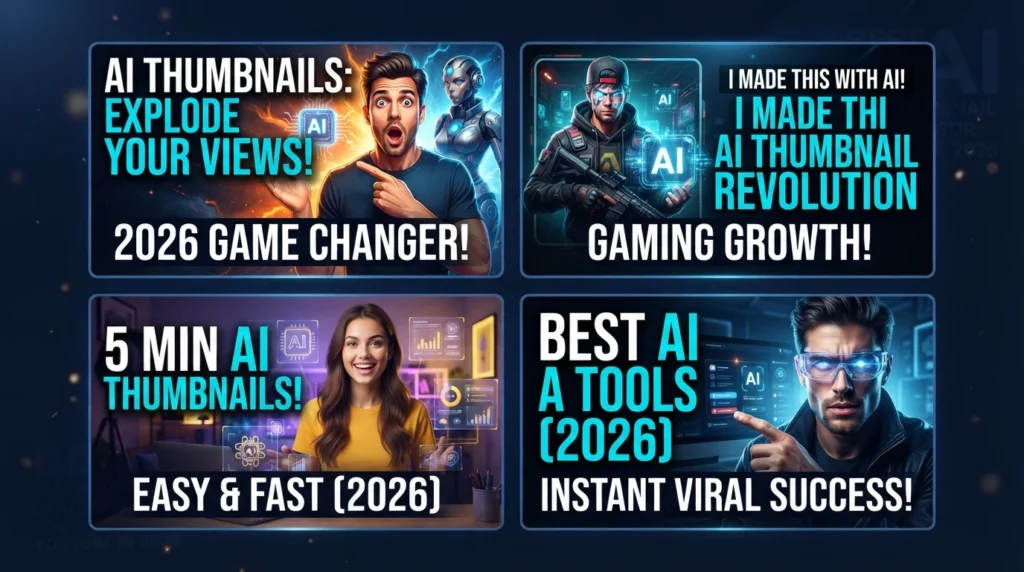
Table of Contents
Key Takeaways
- Thumbnails drive click-through rate (CTR); watch time (driven by content) is a separate ranking signal — an AI tool only fixes the first one.
- Canva, CapCut, Leonardo AI, Pikzels, and Adobe Firefly are the strongest AI thumbnail generator for YouTube options in 2026, each suited to a different workflow.
- A thumbnail needs one idea, high contrast, and 2–5 words of text to work at small size.
- The same design, resized to 1080×1920 and repositioned, becomes a ready cover for Instagram Reel and Facebook Reel.
- Export at 1280×720 (16:9), under 2MB, and always generate 3–5 variations before publishing.
Why an AI Thumbnail Generator for YouTube Actually Moves the Needle
YouTube’s algorithm rewards two separate things: how many people click (CTR) and how long they stay (watch time). A thumbnail only controls the first one — but that first click is the gate everything else depends on.
An AI thumbnail generator for YouTube helps on that gate specifically:
- Layout suggestions that follow proven YouTube patterns — big subject, big text, high contrast
- Automatic cleanup — background removal, lighting correction, sharpening
- Fast variation generation for real A/B testing instead of guessing
- Saved brand kits so every thumbnail looks like it belongs to the same channel
More iterations, produced faster, is the actual mechanism behind the CTR lift. The tool doesn’t make you creative — it removes the friction that stops you from testing.
The Non-Negotiables Before You Touch a Tool
AI can execute a good idea fast. It can’t rescue a bad one. These five rules apply no matter which generator you use.
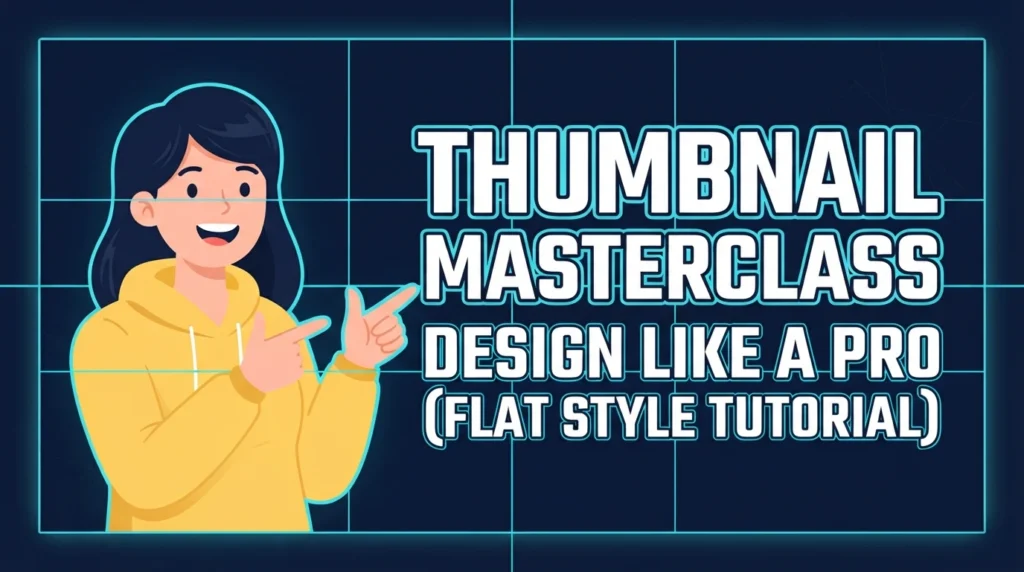
One idea per thumbnail. Ask yourself what single promise the video makes — “3 mistakes killing your CTR,” “Before vs. after,” “60-second AI thumbnail hack.” A thumbnail trying to say three things says nothing.
High contrast, simple composition. Most views happen on a small screen. Dark background with a bright subject (or the reverse) reads instantly; clutter and small objects don’t.
A strong focal point. A face works because emotion transmits fast. If you’re not on camera, use a bold product shot, a clean cutout, or a before/after result image instead.
Text readable in one second. Cap it at 2–5 words, use a thick font, and add an outline or stroke so it holds up against any background.
Consistent branding. Repeat the same color palette, font, and layout pattern across every upload so viewers recognize your content in a crowded feed before they even read the title.
Best AI Thumbnail Generator for YouTube: 5 Tools Compared (2026)
| Tool | Best For | Standout Feature | Free Plan | Starting Price |
|---|---|---|---|---|
| Canva | Beginners, template speed | Hundreds of YouTube-specific templates + Magic Edit | Yes | $12.99/mo (Pro) |
| CapCut | Creators already editing video | AI Design Agent turns a text prompt into a full layout | Yes | $9.99/mo |
| Leonardo AI | Fully custom AI art thumbnails | Fast generation, generous free credits | Yes | $10/mo |
| Pikzels | Dedicated YouTube thumbnail + title testing | Built only for YouTube — pairs thumbnail with title variants | Limited trial | $19/mo |
| Adobe Firefly | Professional control, brand-safe generation | Commercially safe training data, deep Photoshop integration | Yes | $9.99/mo |
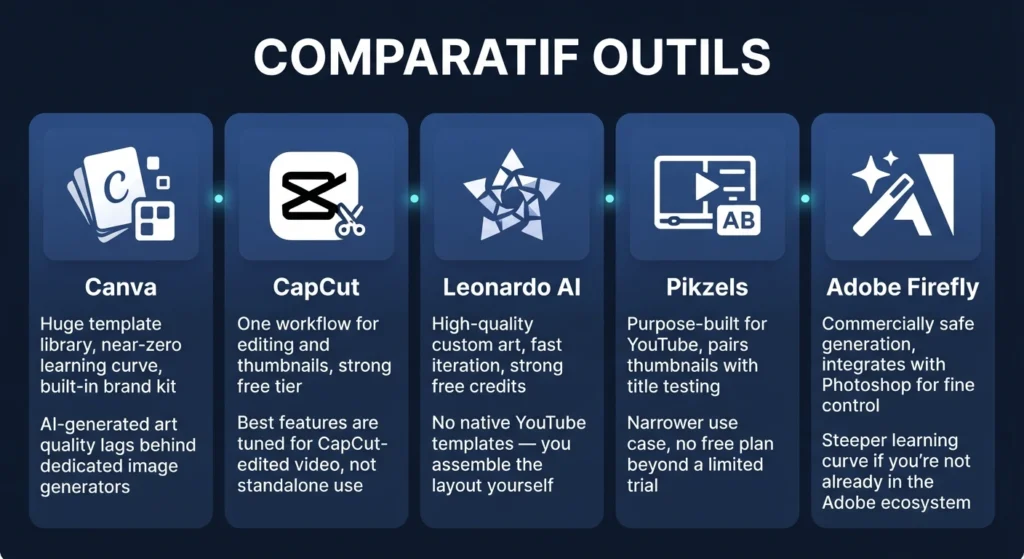
Quick picks: go with Canva if you want zero learning curve and a template library; CapCut if you’re already cutting your videos there and want thumbnails in the same pass; Leonardo AI if you want fully custom AI-generated art rather than a template; Pikzels if thumbnails are your main growth lever and you want a tool built only for that job; Adobe Firefly if you need commercially safe assets for a brand or client channel.
Canva and CapCut are also the two most-used tools for repurposing content across formats — see our full breakdown in CapCut vs. Canva for social media reels and stories if you’re deciding which one to standardize on.
Pros and Cons
Canva
- Pros: Huge template library, near-zero learning curve, built-in brand kit
- Cons: AI-generated art quality lags behind dedicated image generators
CapCut
- Pros: One workflow for editing and thumbnails, strong free tier
- Cons: Best features are tuned for CapCut-edited video, not standalone use
Leonardo AI
- Pros: High-quality custom art, fast iteration, strong free credits
- Cons: No native YouTube templates — you assemble the layout yourself
Pikzels
- Pros: Purpose-built for YouTube, pairs thumbnails with title testing
- Cons: Narrower use case, no free plan beyond a limited trial
Adobe Firefly
- Pros: Commercially safe generation, integrates with Photoshop for fine control
- Cons: Steeper learning curve if you’re not already in the Adobe ecosystem
Step-by-Step: Building a Thumbnail With an AI Thumbnail Generator for YouTube
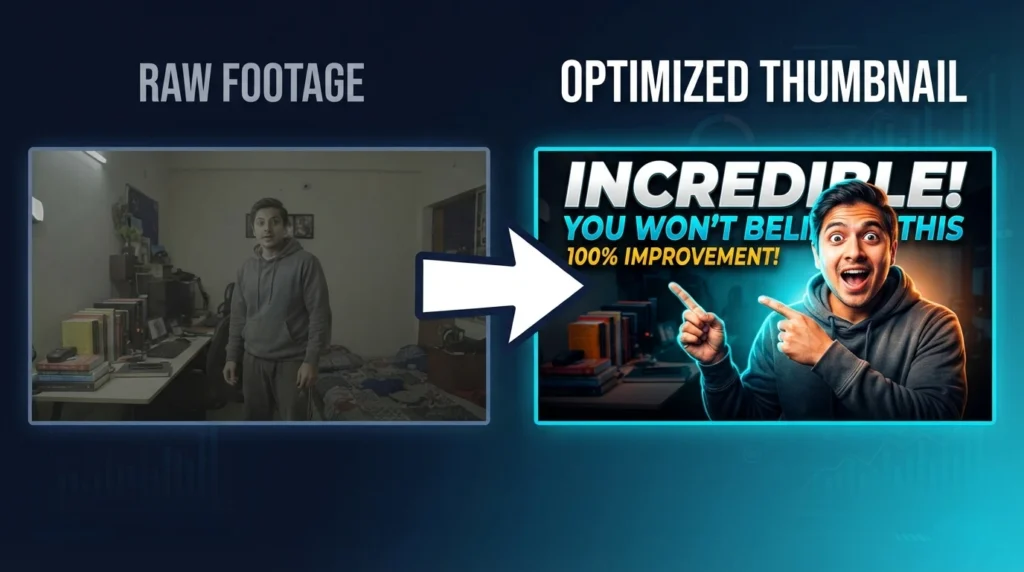
This workflow applies to any of the five tools above.
- Write three hooks. Short and punchy — “STOP DOING THIS,” “AI THUMBNAIL HACK,” “CTR BOOSTER.” Pick one.
- Choose your base image. A frame from the video itself (most authentic), a high-quality photo of you, or a product screenshot for tutorials/reviews.
- Clean the subject with AI. Background removal, lighting correction, sharpening, and optionally a subtle rim light for separation from the background.
- Build the composition. Subject large on one side, text large on the other, one or two supporting elements (arrow, circle, icon) at most.
- Add text with contrast. Place it on a solid shape or gradient, add an outline, and increase letter spacing so it holds up at thumbnail size.
- Generate 3–5 variations. Change exactly one variable per version — wording, background color, expression, or zoom level — so you can actually tell what worked.
- Export correctly. 1280×720, 16:9, under 2MB, JPG or PNG.
How to Repurpose the Same Thumbnail for Instagram Reel and Facebook Reel
Once the YouTube version is done, the same design can become a cover image for Instagram Reel and Facebook Reel — both of which need a vertical 1080×1920 (9:16) frame instead of YouTube’s 1280×720 (16:9).
Repurpose workflow:
- Duplicate the finished thumbnail design.
- Switch the canvas to 9:16.
- Keep the subject large and centered — vertical crops lose the edges first.
- Move text higher on the frame so it clears the profile/UI overlay near the bottom.
- Trim text down to 1–3 words; vertical thumbnails have less usable width.
Safe zones on Instagram Reel and Facebook Reel: keep every important element away from the bottom third, away from the far left/right edges, and centered vertically — that’s where captions, usernames, and action buttons sit.
Even though Reels autoplay, the cover image still matters for the profile grid, Explore/Reels tab placement, and link previews when a reel gets shared — so this isn’t wasted design work.
FAQ
Can an AI thumbnail generator actually increase views? Indirectly, yes. AI doesn’t guarantee views — it lets you produce and test more thumbnail variations in less time, and more iteration is what tends to lift CTR over a channel’s history.
Should I put a lot of text on a YouTube thumbnail? No. Keep it to 2–5 words. The title carries the detail; the thumbnail carries the hook.
Can I use the exact same file for Instagram Reel and Facebook Reel? Not as-is. Reuse the concept and branding, but resize to vertical 9:16 and reposition text and subject to clear the UI overlays.
Is a free AI thumbnail generator good enough for YouTube? For most creators starting out, yes — Canva, CapCut, and Leonardo AI all have usable free tiers. Upgrade once you’re testing at volume or need brand-kit consistency across a team. YouTube’s own Creator Academy on thumbnails is also worth a read for the platform-side best practices AI tools are designed around.