
Subtitles can increase watch time fast—especially on mobile where many people watch with sound off. The problem is most “free” caption tools generate subtitles in seconds… then watermark your video export unless you upgrade.
This guide solves that. Below you’ll find the best AI subtitle generator free no watermark options in 2026, with a comparison table, clear pros/cons, and the simplest workflow to guarantee a clean export.
Table of Contents
recommended reading:
If you use CapCut or Canva for social videos: CapCut vs Canva for Social Media: Reels & Stories Winner
If your goal is watermark-free editing overall: Best Free AI Video Editing Tools 2026 (No Watermark)
Quick picks (best tools by use case)
Fastest for Shorts/Reels:CapCut
Most reliable “no watermark” method:Whisper (SRT) + DaVinci Resolve
Best for YouTube workflow:YouTube Studio Captions
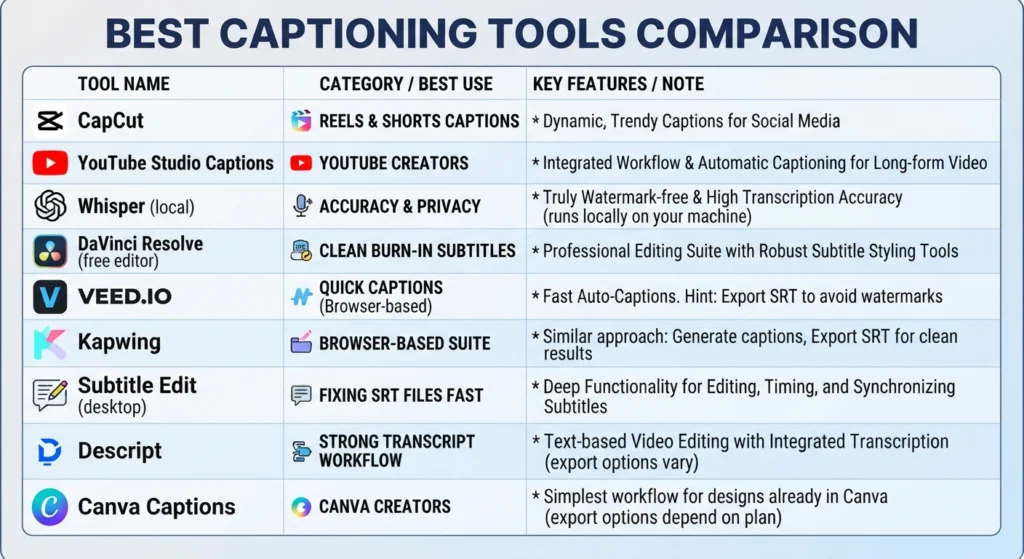
Comparison table: AI subtitle generator free no watermark (2026)
Important: “No watermark” depends on what you export.
Exporting subtitle files (SRT/VTT) is typically watermark-free.
Many online editors watermark video exports on free plans.
| Tool | Price (Free?) | Watermark? | Best for | Accuracy (typical) |
|---|---|---|---|---|
| CapCut | Free + optional paid | Usually No (avoid branded templates) | Reels/Shorts with styled captions | High |
| YouTube Studio (Captions) | Free | No | YouTube long-form + Shorts | High |
| Whisper (local) | Free | No | Best accuracy + full control | Very High |
| DaVinci Resolve | Free | No | Burning subtitles + pro editing | N/A (editor) |
| VEED | Free tier | Often Yes on video exports; No for SRT | Browser captions quickly | Medium–High |
| Kapwing | Free tier | Often Yes on video exports; No for SRT | Browser workflow | Medium |
| Subtitle Edit | Free | No | Fixing/cleaning SRT files | N/A (editor) |
| Descript | Free tier | Depends on plan/export | Transcript-based edits | High |
| Canva (Captions) | Free tier | Depends on elements/plan | Simple social videos | Medium |
1) CapCut (best for Reels/Shorts captions)
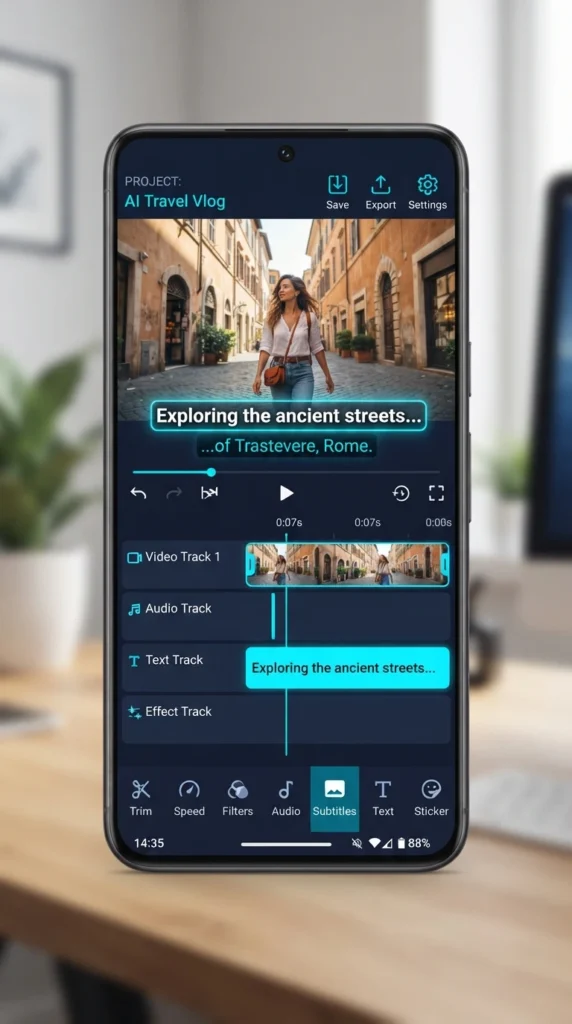
CapCut is one of the easiest ways to generate auto-captions and style them for short-form content.
Best for: TikTok, Instagram Reels, YouTube Shorts
Try it:https://www.capcut.com/
Pros
Fast auto-captions with good accuracy
Great subtitle styles for mobile
Quick workflow for creators who post daily
Cons
Some templates/elements can introduce branding or restrictions
Not ideal for long multi-speaker videos
Extra tip: If you’re deciding between Canva and CapCut for social posts, read:
CapCut vs Canva for Social Media: Reels & Stories Winner
2) YouTube Studio Captions (best for YouTube creators)
If you publish on YouTube, YouTube’s built-in captions can be surprisingly strong—and watermark-free.
Best for: Long YouTube videos, tutorials, talking-head content
Official help:https://support.google.com/youtube/ (search “captions YouTube Studio”)
Pros
Strong speech recognition in many scenarios
Easy editing inside YouTube Studio
No watermark problem (captions workflow)
Cons
Typically requires uploading to YouTube first
Styling is limited compared to social editors
3) Whisper (local) — best accuracy + truly watermark-free
Whisper is a powerful transcription engine that can generate SRT/VTT subtitle files locally. This is one of the cleanest ways to guarantee no watermark.
Best for: Accuracy + full control + zero branding
Official project:https://github.com/openai/whisper
Pros
Excellent accuracy (especially with clear audio)
Generates SRT/VTT files you fully own
Works offline once installed
Cons
Requires setup (not as beginner-friendly as web tools)
Styling captions happens later in your editor
4) DaVinci Resolve (free editor) — best for burning subtitles cleanly
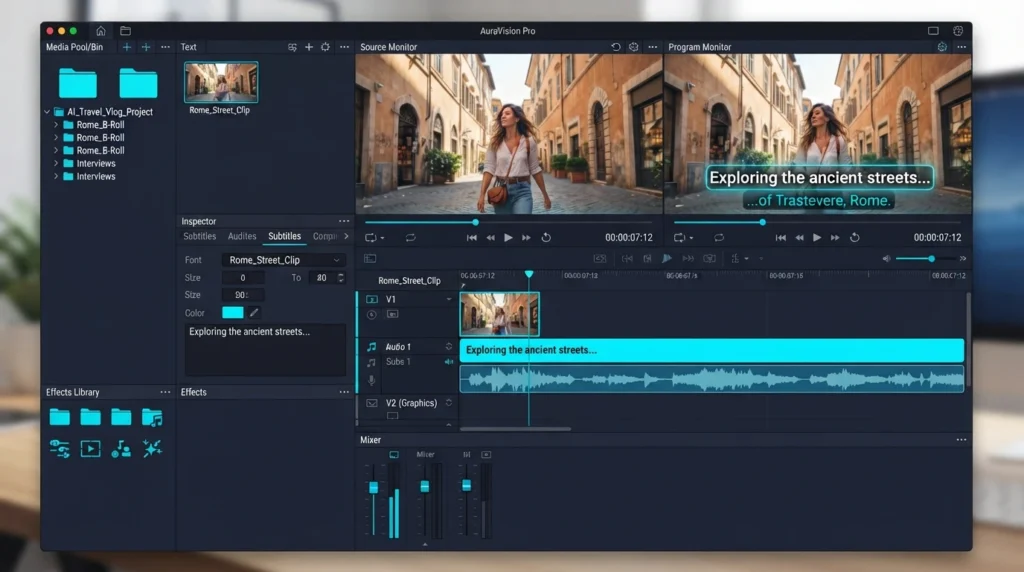
DaVinci Resolve is a pro-level editor with a free version that exports without watermark. It’s ideal for importing SRT and burning subtitles into the final video.
Best for: Clean exports, long-form YouTube, full control
Official site:https://www.blackmagicdesign.com/products/davinciresolve
Pros
No watermark in the free version
Strong control over fonts/position/timing
Professional results
Cons
Learning curve if you’re new to editing
Best used after generating SRT elsewhere
5) VEED (browser-based) — good for quick captions (export SRT to avoid watermark)
VEED is convenient, but free video exports may be watermarked. Use it primarily to generate captions and export SRT, then burn captions in CapCut/DaVinci.
Best for: Fast browser caption generation
Official site:https://www.veed.io/
Pros
Very easy in the browser
Quick auto-subtitle generation
Cons
Watermark risk on free video exports
Free plan limits can change
6) Kapwing (browser-based) — similar strategy: export SRT
Kapwing is another popular web editor. Same rule: export SRT and finalize elsewhere if you want to guarantee no watermark.
Best for: Simple browser workflow
Official site:https://www.kapwing.com/
Pros
Beginner-friendly interface
Quick edits + captions
Cons
Watermark risk on free video exports
Export limits may be restrictive
7) Subtitle Edit (desktop) — best for fixing SRT fast
Subtitle Edit is perfect for cleaning subtitles: timing, punctuation, line breaks, and readability.
Best for: Polishing AI subtitles
Official site:https://www.nikse.dk/subtitleedit
Pros
Great control over timing and formatting
Easy to fix names/numbers quickly
No watermark (not a hosted exporter)
Cons
Doesn’t generate captions from scratch
Desktop UI may feel “technical”
8) Descript — strong transcript workflow (export depends)
Descript is great when you want to edit video/audio via transcript. Watermark/export behavior depends on plan and settings, so confirm before committing.
Best for: Transcript-based editing
Official site:https://www.descript.com/
Pros
Powerful transcript workflow
Good accuracy with clear speech
Fast editing (remove filler words, cut sections)
Cons
Export rules vary by plan
Not always the simplest no-watermark path
9) Canva Captions — simple for Canva creators (export depends)
If you already create social videos inside Canva, captions can be convenient. “No watermark” depends on assets and plan.
Best for: Simple social videos in Canva
Official site:https://www.canva.com/
Pros
Very beginner-friendly
Fast for marketing-style social clips
Cons
Accuracy varies by audio quality
Export restrictions can appear with Pro assets
The most reliable no-watermark workflow (recommended)
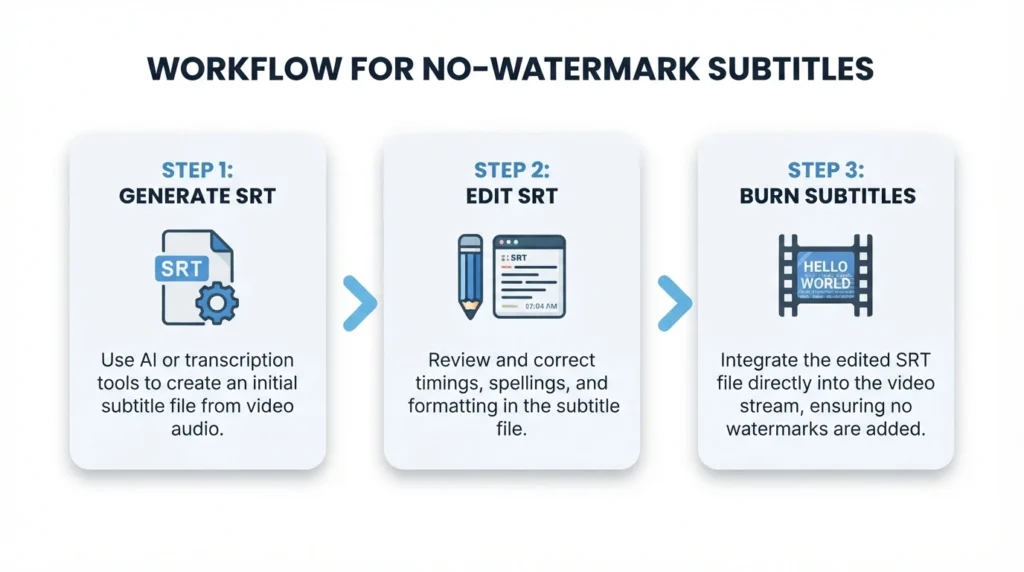
If you want the simplest “always clean” process, use this:
Step 1) Generate subtitles as an SRT file
Pick one:
Whisper (best accuracy + full ownership)
YouTube Studio (best if you already upload to YouTube)
VEED/Kapwing (generate captions, export SRT, not video)
Step 2) Clean the SRT (optional but recommended)
Use Subtitle Edit to fix:
product/tool names (AI often misses these)
punctuation and capitalization
timing and line breaks
Step 3) Burn subtitles into the final video (no watermark)
CapCut for Shorts/Reels/TikTok
DaVinci Resolve for long-form/pro editing
If you want a full editing stack, also see:
Best Free AI Video Editing Tools 2026 (No Watermark)
Tips to improve subtitle accuracy (quick wins)
Reduce background music volume before generating captions
Use a clearer mic if possible (even budget lav mics help)
Manually correct names, acronyms, and numbers
Keep captions short (1–2 lines max for mobile readability)
For multi-speaker audio, add breaks for clarity
FAQ: AI subtitle generator free no watermark
Can I get a free AI subtitle generator with no watermark online?
Sometimes, but many tools watermark video exports on free plans. The safest method is exporting SRT/VTT and then burning subtitles in a watermark-free editor like CapCut or DaVinci Resolve.
What subtitle format should I use?
SRT: most universal
VTT: common for web players
What’s the easiest option for Shorts and Reels?
CapCut is usually the easiest—just avoid branded templates and verify export settings.
Final recommendation
If you want the cleanest “no watermark” approach:
Whisper (SRT) → Subtitle Edit (cleanup) → CapCut or DaVinci Resolve (burn subtitles)