
Best Free AI Video Editing Tools 2026 (No Watermark)
Artificial intelligence has transformed how we edit videos, from automatic subtitles to smart color matching and motion-aware edits. The best part for creators on a budget is that several powerful AI-assisted editors now offer free plans with no watermark. In 2026, you can assemble polished videos without paying for software, while still benefiting from AI features that save time and improve quality. This guide highlights reliable, no-watermark options and explains what each one does well, so you can choose the tool that fits your goals—whether you’re producing social clips, tutorials, or short films.
Table of Contents
What to expect from free AI video editors without watermarks
When a video editor offers a free version with no watermark, it usually means you can export projects without a branding stamp, even if you’re using advanced features. For AI-powered editing, expect tools that help automate routine tasks: auto captions, smart color corrections, scene changes, background removal, and templates that adapt to your content. Some free plans limit output resolution or restrict certain advanced features, but the best no-watermark options still deliver robust AI-assisted capabilities for everyday editing needs. Below are editors that are popular in 2026 for being feature-rich, reliable, and genuinely watermark-free on their free tiers.
DaVinci Resolve (Free) — the professional-grade option with AI power
What it is
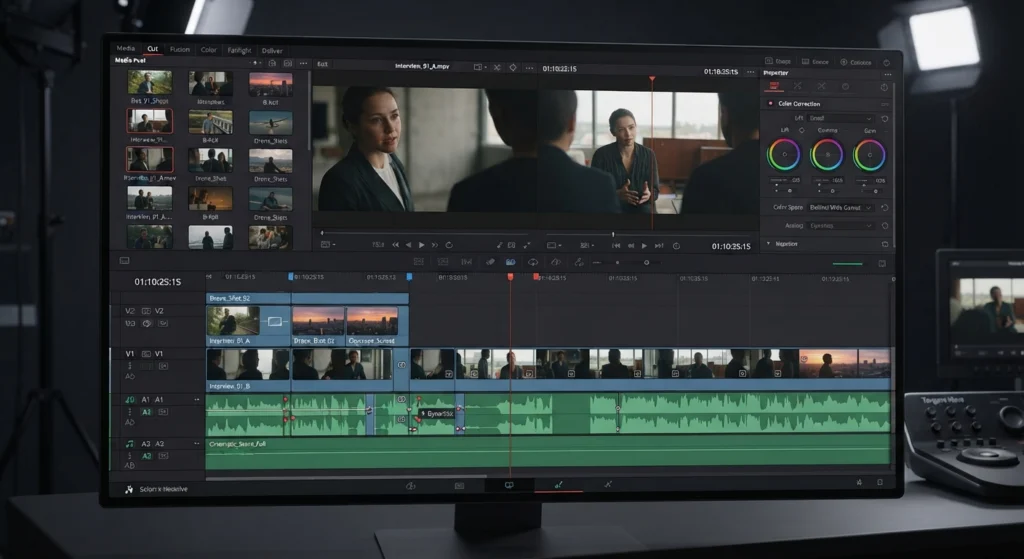
DaVinci Resolve, from Blackmagic Design, is a comprehensive editing suite that combines video editing, color grading, audio post, and visual effects. The free version has long been a favorite among indie creators and hobbyists who want professional results without a price tag. It runs on Windows, macOS, and Linux, and it exports without watermarks.
AI features and how they help
- Neural Engine-based AI tools that assist with editing tasks, such as color consistency and automated tasks that save time on common workflows.
- Smart media handling and automated scene detection to help organize footage and speed up rough cuts.
- Fidelity tools that leverage AI to maintain quality during scaling or reframing, as far as the free version allows.
Why it’s a strong pick
- Professional-grade tools in a free package with no watermark.
- Excellent color grading, audio mixing, and Fusion-based visual effects for ambitious projects.
- A steep but rewarding learning curve; there are plenty of tutorials and an active community.
Best for
Editors who want a single, powerful tool for long-form videos, do-it-yourself film projects, or anything requiring advanced color work and post-processing. If you’re serious about building a polished look and don’t mind investing time in learning the interface, Resolve is hard to beat on a zero-dollar budget.
CapCut (Free) — AI-powered editing for fast social-ready videos
What it is
CapCut is a versatile editor that started on mobile and expanded to desktop. Its free version is widely used by creators who publish short-form content on social platforms. CapCut exports without a watermark, which makes it especially attractive for quick workflows.
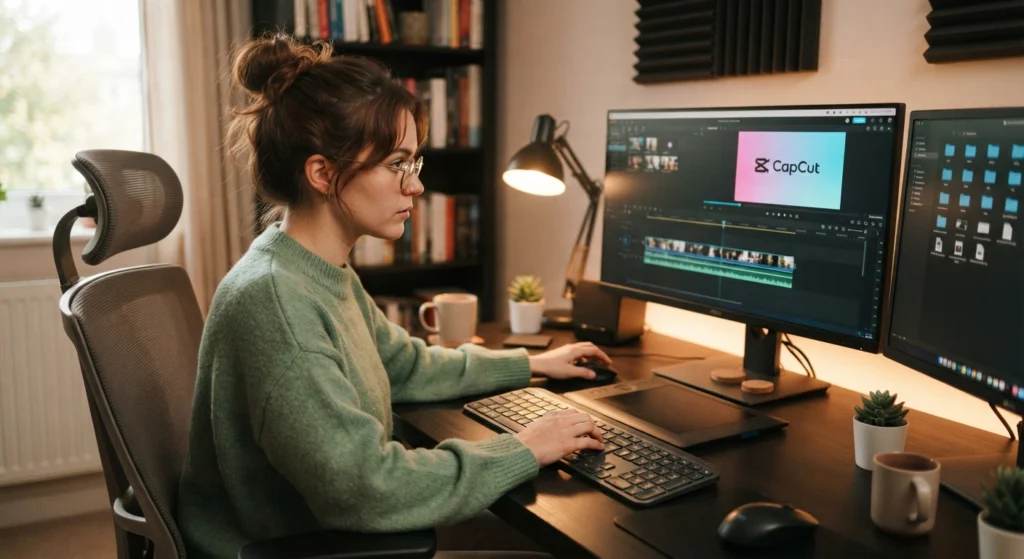
AI features and how they help
- Auto-subtitle generation and captioning to accelerate accessibility and reach.
- Smart background removal and auto-cut tools that simplify scene separation and subject isolation.
- AI-driven effects and templates that adapt to your footage density and pacing, helping you produce engaging cuts quickly.
Why it’s a strong pick
- Intuitive interface with a strong focus on short-form content and social media formats.
- Extensive library of templates and effects that speed up production without watermarks.
- Cross-platform convenience: works well on both mobile and desktop, so you can edit on the go.
Best for
Creators who regularly publish on TikTok, Instagram Reels, YouTube Shorts, or similar platforms and want a fast, AI-assisted workflow without paying for software. CapCut shines when you want results fast and don’t need the depth of a traditional non-linear editor.
OpenShot — a capable, open-source option without a watermark
What it is
OpenShot is a free, open-source video editor that runs on Windows, macOS, and Linux. It’s known for a clean, approachable interface and straightforward editing features. It doesn’t come with the heavy, professional-grade AI tools found in some paid products, but it remains a solid choice for basic editing and quick experiments.
AI features and how they help
- Open-source ecosystem means you can extend OpenShot with AI-based plugins and scripts if you want to experiment with automation.
- Core features focus on stability and ease of use rather than built-in AI automation.
Why it’s a strong pick
- No watermark and no cost to export projects; great for learning the fundamentals of video editing.
- Active community and extensibility through plugins and community-built tools.
Best for
Absolute beginners and hobbyists who want a simple editor, and for those who enjoy tinkering with add-ons and AI experiments in a flexible, open-source environment.
Free AI Video Editing Tools Shooters’ standbys: Shotcut, Blender, and VSDC — reliable, no-watermark editors with AI-friendly potential
Shotcut (Free) — straightforward and cross-platform
Shotcut is another free, cross-platform editor that exports without a watermark. It’s known for broad format support and a modular interface. While it doesn’t include advanced AI features as a built-in selling point, you can pair Shotcut with AI tools or use it for simple automation tasks via scripting, making it a practical option for those who want control without cost.
Blender (Free) — more than 3D; capable video editing with scripting
Blender is primarily a 3D animation package, but it includes a capable Video Sequence Editor. It exports without a watermark and is ideal for projects that blend motion graphics, VFX, and video editing. AI capabilities in Blender often come from add-ons or external scripts, which means it’s a good choice if you’re comfortable with Python and want to experiment with AI-assisted effects in a 3D-rich workflow.
VSDC Free Video Editor — Windows-friendly, no watermark
VSDC offers a robust free option for Windows users, with features like color correction, motion tracking, and various video effects. The free version does not watermark exports, which is a plus for straightforward projects. Some advanced features, however, are locked behind a paid upgrade. AI features are not the editor’s primary selling point, but you can achieve AI-assisted tasks by using external tools or workflows in combination with VSDC.
How to choose the right no-watermark AI editor for your needs
With several solid options, choosing the right tool depends on your goals, experience, and the type of content you create. Here are practical guidelines to help you pick the best fit:
- Content type and length: For long-form videos with complex color work, DaVinci Resolve offers the most depth. For quick social clips, CapCut delivers speed and convenience.
- Learning curve: Resolve and Blender have steeper learning curves but pay off in depth and control. CapCut and OpenShot are friendlier for beginners.
- Platform preference: If you edit on mobile or want seamless cross-device work, CapCut is often the most convenient. Desktop-focused editors like Resolve offer more professional tools on a bigger screen.
- AI features you care about: If auto captions and background removal are your priorities, CapCut is a strong bet. For professional-grade color and precision edits, Resolve is typically the better choice.
- Export quality versus speed: Free versions generally provide good quality exports, but some tools impose limits on resolution or features. Resolve tends to offer high-quality outputs with more export options in the free tier.
Practical workflows to maximize AI benefits without paying
Here are some starter workflows that leverage AI features across the listed tools while keeping within free, no-watermark constraints:
- Generate captions automatically for accessibility and reach. Use CapCut or the captioning features in DaVinci Resolve to create initial subtitles, then manually correct any errors for accuracy.
- Use AI-assisted color planning in Resolve. Start with a quick auto-color balance, then fine-tune with manual grading to achieve your signature look.
- Implement quick cuts with CapCut templates. If you’re producing social content, templates and AI-driven transitions can bring consistency across multiple clips in a batch.
- Experiment with AI effects via Blender or OpenShot plugins. If you’re comfortable with scripting, you can introduce AI-assisted effects or automations to your project flow.
- Combine tools for a layered workflow. Do rough edits in CapCut for speed, then move the project to Resolve for precise color and audio work. CapCut can export a clean, share-ready timeline importable in Resolve, depending on your file formats.
Tips for getting the most from no-watermark AI editors
- Plan before you edit. Create a simple storyboard or shot list to minimize back-and-forth, especially when using AI captions or auto-edit features.
- Keep your media organized. Use consistent naming and folders so AI features like scene detection or auto metadata tagging work more reliably.
- Check export settings. Free versions can have subtle limitations on resolution, frame rate, or codec. Confirm you’re exporting in your target format for your platform.
- Back up your work. AI features can be powerful but aren’t immune to glitches. Regularly save and archive project files and media.
- Stay mindful of licensing for stock assets. If you use CapCut templates or stock media, verify the licensing terms for commercial use if that’s your plan.
A quick comparison at a glance
- DaVinci Resolve — Best for: serious editing, color work, audio post; AI tools available via Neural Engine; free version has no watermark; learning curve is moderate to high.
- CapCut — Best for: quick social content, auto captions, and AI effects; no watermark; extremely beginner-friendly; ideal for mobile-then-desktop workflows.
- OpenShot — Best for: beginners and experimentation; no watermark; AI features are limited and often rely on external plugins.
- Shooters’ standbys (Shotcut/Blender/VSDC) — Best for: users who want no-cost options with flexibility; no watermark; AI capabilities exist mainly via plugins or scripts or are not central to the tool, making them suitable for learners or specialized uses.
Common pitfalls and how to avoid them
Even with no watermark, free AI editors aren’t perfect. Here are some practical caveats and how to handle them:
- Over-reliance on AI captions: Auto-generated text can contain errors or misinterpretations. Always review and correct captions for accuracy and readability.
- Quality versus speed: AI automation can speed up workflows, but it can also produce over-processed looks. Always review the final edit in full before exporting.
- Feature limits in free plans: Some advanced AI features may be present but slightly restricted in resolution or certain codecs. Plan your project around the available capabilities, and consider upgrading only if you need a specific capability.
- Software stability: Free tools can occasionally be less stable on older hardware. Make sure your system meets the recommended requirements and save frequently.
Conclusion
As 2026 unfolds, creators have more high-quality, no-watermark options than ever for AI-assisted editing without breaking the bank. DaVinci Resolve remains the heavyweight champion for those who want professional-grade color, audio, and motion graphics alongside AI-powered features as part of a robust free package. CapCut offers a fast, user-friendly route for AI-assisted social content, with no watermark and strong automation tools tailored to short-form video. For beginners or casual editors who prefer a straightforward experience, OpenShot, Shotcut, and VSDC provide reliable, no-cost avenues to create polished videos, with the option to explore AI plugins or external tools as your skills grow. Blender adds a unique blend of editing and 3D effects for ambitious projects where AI-assisted tasks can be explored through scripting and add-ons.
Choosing the right tool depends on your content type, workflow, and willingness to learn. Start with CapCut if speed and simplicity are your priority, and complement with DaVinci Resolve if you’re aiming for a more cinematic finish and deeper post-production control. With these no-watermark options, you can experiment, learn, and publish compelling videos without dipping into a paid plan—making 2026 a great year to harness AI in your creative process.
Discover the top-rated free AI video editing tools
to streamline your workflow this year. Whether you need automated captions, text-to-video generation, or advanced effects without branding, platforms like DaVinci Resolve
and InVideo
offer powerful capabilities for content creators. To further enhance your digital workflow, explore expert tips and tutorials on TechCrunch
and The Verge for the latest industry updates.